HP DeskJet, ENVY 5000 Printers - Printing Self-Test Pages
HP DeskJet, ENVY 5000 Printers - Printing Self-Test Pages
This document is for HP DeskJet Ink Advantage 5075, 5076, 5078, 5085,
5088 and ENVY 5010, 5012, 5014, 5020, 5030, 5032, 5034, 5052, 5055
All-in-One printers.
Print self-test pages, including Printer Status Report, Network
Configuration Page, Print Quality Diagnostic Page, Web Access Test
Results, and a Web Services Information Page.
Print a Printer Status Report
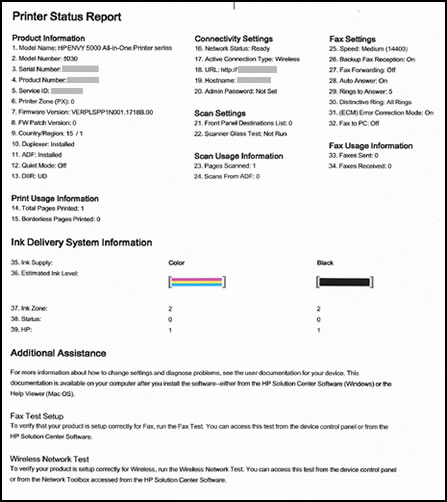
A Printer Status Report lists the printer serial number, estimated ink
levels, ink cartridge numbers, printer usage, and connectivity, scan, and
fax settings.
-
Make sure there is U.S. letter or A4 size, unused, plain paper in the input tray.
-
On the printer control panel, touch the Setup icon.
-
Touch Tools.
-
Swipe down the display, and then touch Print Status Report.A Printer Status Report prints.Figure : Example of a Printer Status Report
Print a Network Configuration Page
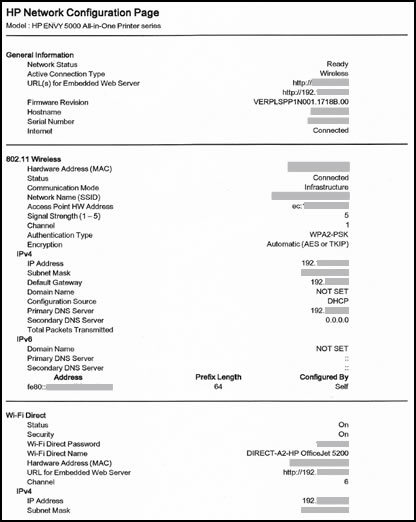
A Network Configuration Page lists important network settings such as
network status and the printer IP address.
-
Make sure there is U.S. letter or A4 size, unused, plain paper in the input tray.
-
On the printer control panel, touch the Setup icon
 .
.
-
Touch Tools.
-
Swipe down the display, and then touch Network Configuration Page.A Network Configuration Page prints up to three pages of information.Figure : Example of a Network Configuration Page
Print a Print Quality Diagnostic Page
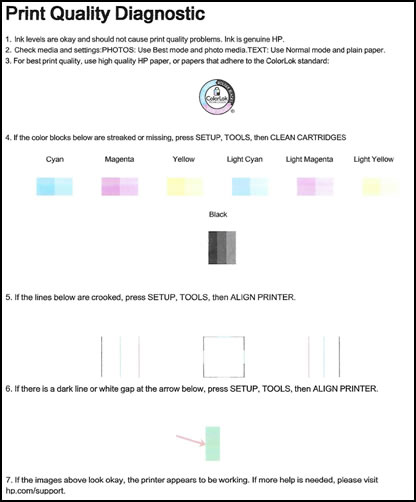
A Print Quality Diagnostic Page helps identify the source of print quality
issues.
-
Make sure there is U.S. letter or A4 size, unused, plain paper in the input tray.
-
On the printer control panel, touch the Setup icon.
-
Touch Tools.
-
Swipe down the display, and then touch Print Quality Report.A Print Quality Diagnostic Page prints.Figure : Example of the Print Quality Diagnostic Page
Print a Web Access Test Results page
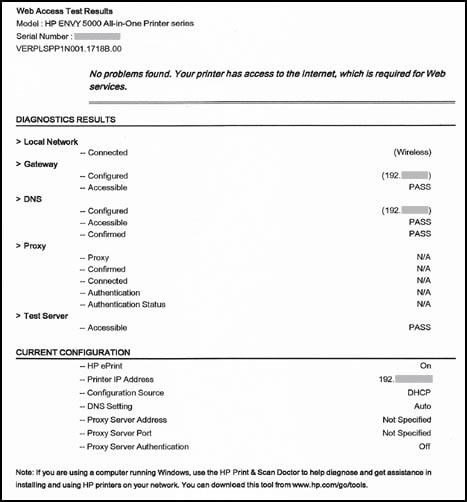
The Web Access Test Results page provides information about the printer
status, DNS setting, and the IP address. If the printer is connected to a
wireless network, the test report displays details about the network
settings. It also indicates any wireless connectivity issues and might
explain how to fix them.
-
Make sure there is U.S. letter or A4 size, unused, plain paper in the input tray.
-
On the printer control panel, touch the Setup icon.
-
Touch Tools.
-
Swipe down the display, and then touch Web Access Report.A Web Access Test Results page prints.Figure : Example of a Web Access Test Results page
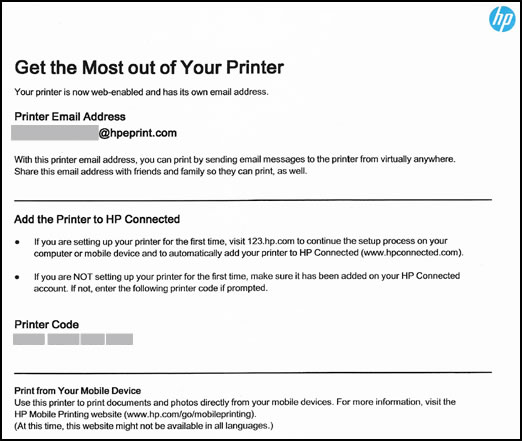
Print a Web Services Information Page
A Web Services Information Page lists the printer's email address and the
Printer Code. Use the Printer Code to enroll in HP Instant Ink or add your
printer to the HP Smart website (formerly HP Connected).
-
Make sure there is U.S. letter or A4 size, unused, plain paper in the input tray.
-
On the printer control panel, touch the Setup icon.
-
Touch Tools.
-
Swipe down the display, and then touch Web Services Information Page.A Web Access Test Results page prints.Figure : Example of a Web Services Information Page
https://support.hp.com/

Comments
Post a Comment